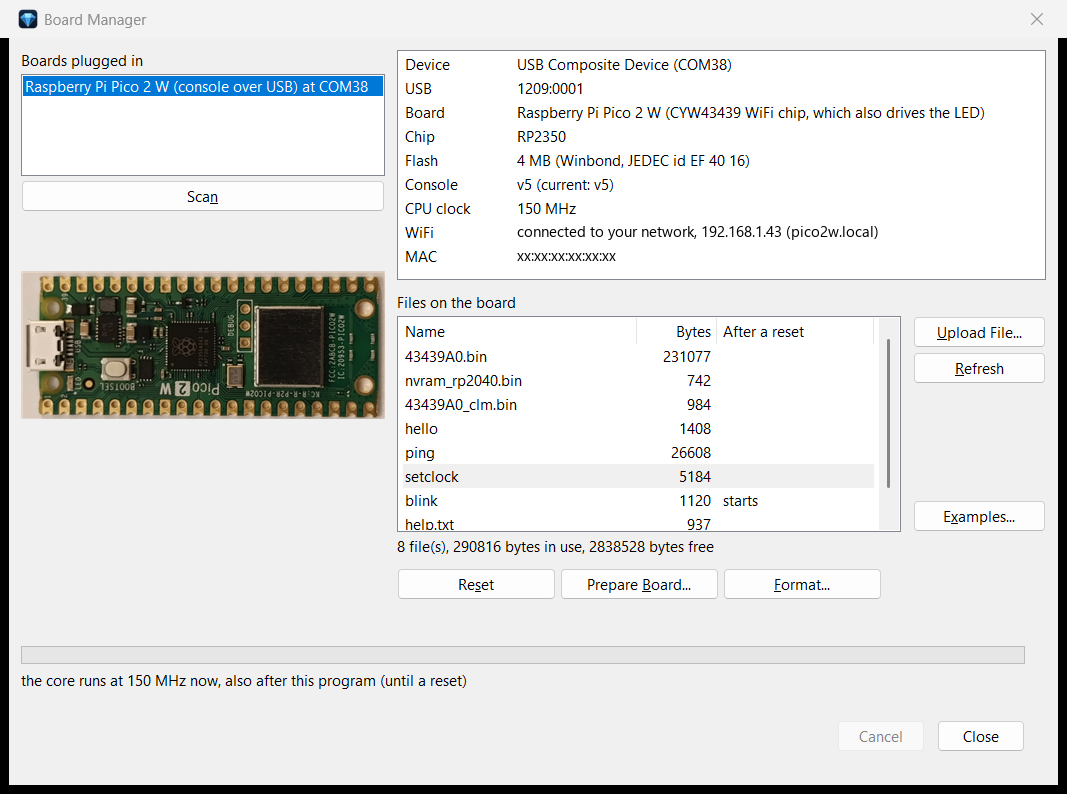
Plug in, click Prepare Board..., done. After that, everything for the board in one place.
The Board Manager is the place for your boards: here you prepare a new board, put files and programs on it, set its WiFi and its clock, and see what Asmonite knows about it. It works with the ESP32, ESP32-S3, ESP32-C3, ESP32-S31, the Raspberry Pi Pico and the Pico 2 (with and without W), each over the board's own USB cable, and for each board it shows only what works with it.
In Asmonite: menu Board > Board Manager. When you plug in a board for the first time, it opens by itself.
RPI-RP2 or RP2350.The console stays in the flash and is back after every reset. When a newer Asmonite brings a newer console, the line Console says so; Prepare Board... then writes it again, and your files are kept.
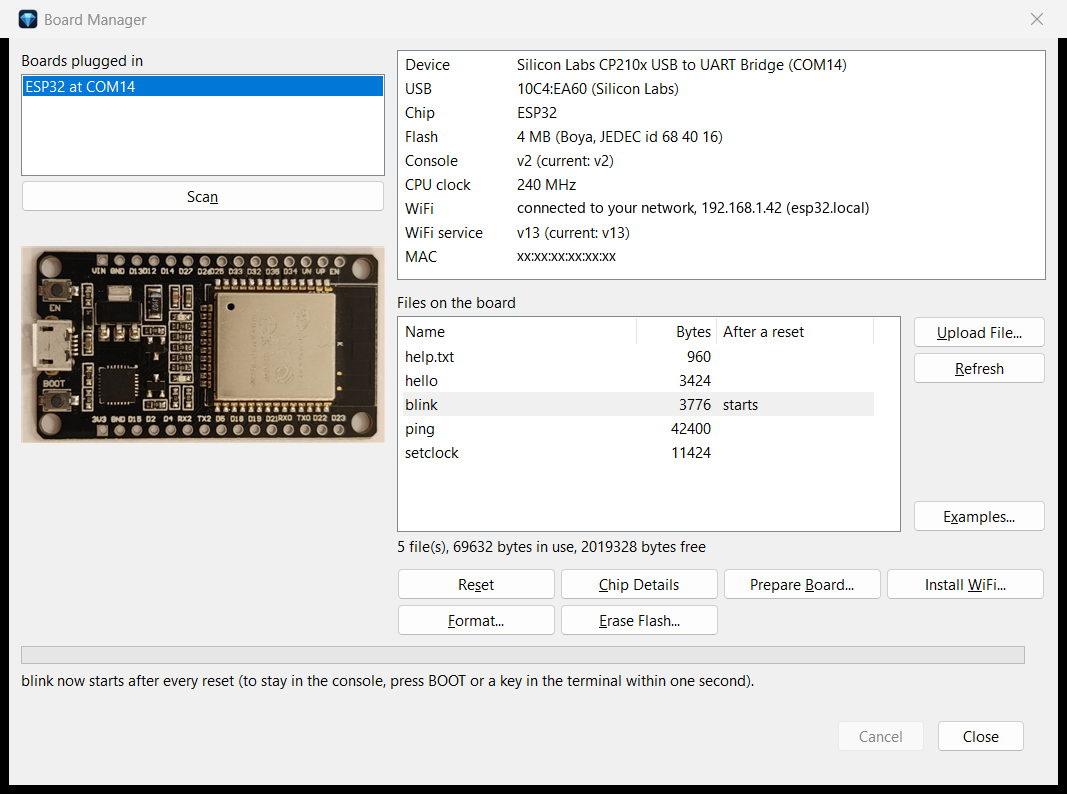
blink starts after every reset), at the bottom the buttons for the board. Network, address and MAC are replaced in the image.
When it opens, the Board Manager only reads what does not disturb the board: what Windows says about the USB device and what the Asmonite console reports. It stops a running program only when you do something that needs the console, and it asks first. Scan looks for the boards again.
Right-click a line to see what you can do with it; a double-click picks the first item. Copy Line and Copy All copy one line or all of them.
| Line | What it says | Right-click |
|---|---|---|
| Console | the version of the console on the board and the current one ("v5 (current: v5)") | for an older version: Prepare Board... writes the current one |
| CPU clock | the clock of the core | Set the Clock...: a clock from the list of the board, until the next reset |
| WiFi | off, connecting or connected; address and name in the network | Set Network..., WiFi On, WiFi Off, Forget Network..., Set mDNS Name... |
| WiFi service | the version of the WiFi package (ESP boards) | Install WiFi... writes the current one |
| telnet | whether a password for telnet is set | Set Password..., Clear Password... |
Set Network... lists the networks this PC sees, and on the ESP32-C3, ESP32-S31 and Pico W also the ones the board sees; From Windows fills in the password Windows has saved for that network.
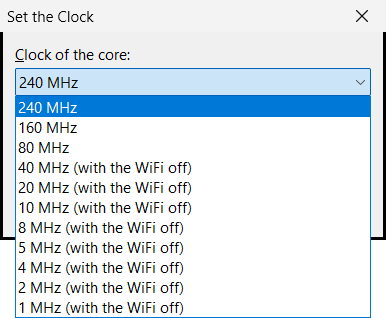
Set the Clock... uses the program setclock on the board. If it is missing, Asmonite compiles examples/<board>/setclock.abel and uploads it first. A clock at which the WiFi does not run switches the WiFi off first. Asmonite asks before either.
Right-click a file to see what you can do with it. Files dragged from the Explorer onto the window are uploaded to the board.
| Run | starts a program (also Enter or a double-click); the window closes, and the tab Serial shows what it writes |
| Open in Editor | opens a text file in the editor (a copy: a change stays on the PC) |
| Autostart | the program starts after every reset |
| Download..., Delete | copies the file to the PC, deletes it |
| Upload File..., Refresh | puts a file from the PC on the board, reads the list again (F5) |
| Examples... | opens an example for the board chosen in the editor; for aBelle (a Python-like programming language), Asmonite sets Project > Target to the board, and F9 runs it there |
From the editor: F9 runs a program in the RAM of the board, without a file. Project > Compile and Upload (Ctrl+Shift+F9) puts it onto the board as a file, Debug > Upload and Run (Shift+F9) then starts it.
| What you see | What helps |
|---|---|
| "The Asmonite console does not respond" | A program runs that Ctrl+C does not stop: Reset. Or there is no console in the flash: Prepare Board... |
| "The flash is empty (no console)" | Prepare Board... |
| "No file system yet" | Format... creates one |
| An ESP32 does not go into its download mode | hold BOOT until Asmonite goes on |
| A Pico does not appear in the list | use a data cable (not a charge-only cable); without a console, plug it in with BOOTSEL held |
| The WiFi is still missing after a reset | the address comes a few seconds later: Refresh (F5) |
Programs for every board, in aBelle and assembly: from blinking to a web server.